![LottoShield Logo -2.png]](https://help.lottoshield.com/hs-fs/hubfs/LottoShield%20Logo%20-2.png?height=50&name=LottoShield%20Logo%20-2.png)
By default, Limited users in LottoShield cannot resolve issues. While the ability to resolve issues can be enabled for a Limited user (either during profile creation or later), this is not recommended.
This restriction helps maintain separation of responsibilities and security between Administrators and Limited users.
Instead, Limited users can add notes to issues so managers and administrators understand what happened and can take the appropriate action. This procedure explains how to leave notes on issues in LottoShield.
Adding Notes for a Scratcher Issue
When a shortage or overage appears during a scratcher audit, the Limited user (usually the Store Manager) should follow the steps below in the LottoShield Portal to add a note for management review.
Procedure: Add a Note to a Shortage/Overage
-
From the Audits page, click the date of the issue to expand the activity dropdown for that day.
-
Click the audit that shows the shortage/overage.
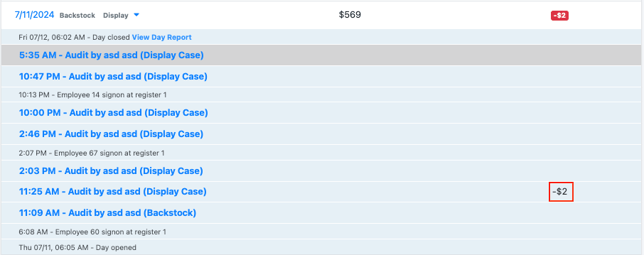
The Audit Details page will open. -
On the Audit Details page, locate the shortage/overage and click the game with the issue.
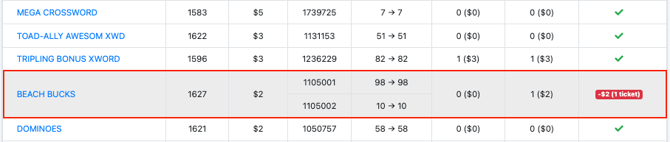
The Scratcher Timeline page will open. -
Click the pencil icon next to the issue.
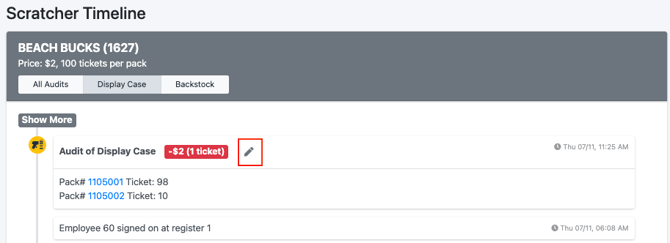
The Add Your Note popup will appear. -
Enter your note and click Save.
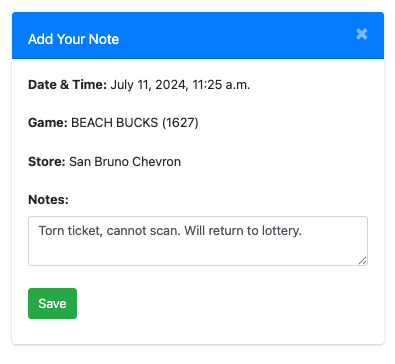
The note will now be visible to a user with permissions to resolve issues and the note icon will appears on the Scratcher Timeline page.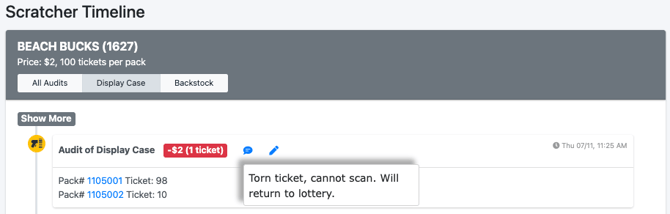
Adding Notes for an Online Lotto Issue
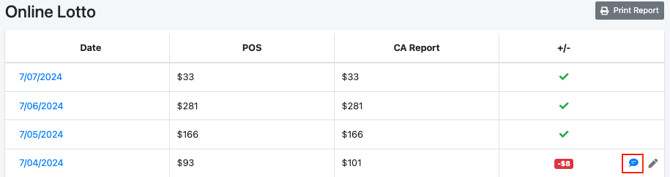
On the Online Lotto page, click the pencil icon next to the issue.
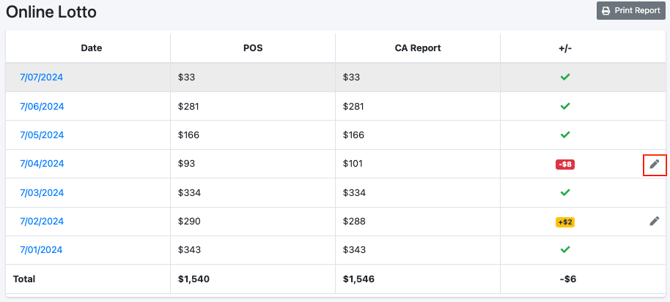
The Add Your Note popup will appear.
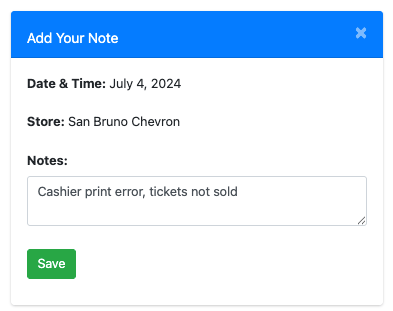
Enter your note and click Save.
The note will now be visible to a user with permissions to resolve issues and the note icon will appears on the Scratcher Timeline page.