![LottoShield Logo -2.png]](https://help.lottoshield.com/hs-fs/hubfs/LottoShield%20Logo%20-2.png?height=50&name=LottoShield%20Logo%20-2.png)
The Scratch Audits page provides a day-by-day view of scratcher sales, audits, discrepancies, and other activity recorded for a store. From this page, you can expand a date to review that day’s activity and open a specific audit for more detailed reconciliation information.
The Audit Details page provides the reconciliation results for the selected audit, including summary totals, exceptional or special-status rows, and ticket movement by game and pack. From there, you can open the Scratcher Timeline for a game or Pack Details for an individual pack.
Scratch Audits
Each row on the Scratch Audits page represents one business day within the selected date range.
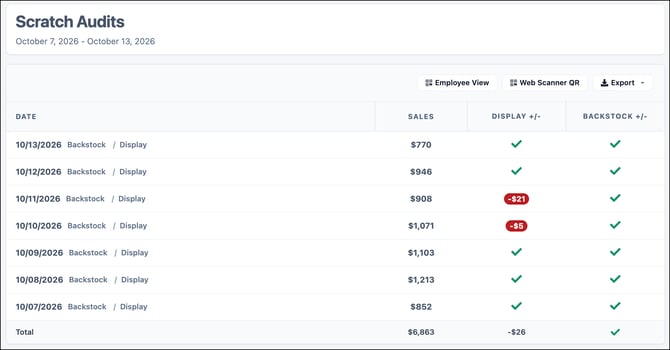
Depending on the activity recorded for that day, the row may show:
- Scratcher sales
- Display case over/short
- Backstock shortages or missing packs
- Vending machine over/short
Shortages appear as negative amounts in red. Overages appear as positive amounts, and categories that reconcile may display a green check mark.
Use the date range selector in the upper-right corner to change the period shown on the page.
Reviewing Daily Activity
Click a date to expand the row and view the activity recorded throughout that business day.
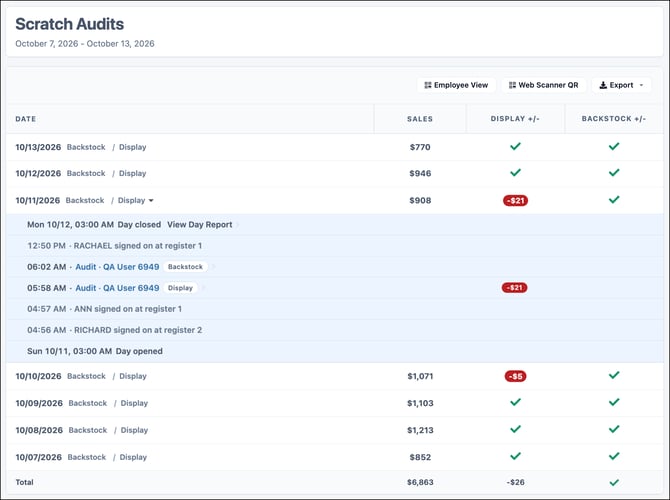
The expanded timeline may include:
- Display Case Audits
- Backstock Audits
- Vending Machine Audits
- Missing-pack activity
- Employee register sign-ons
- Day opening and closing activity
- Day Reports
- Uploaded lottery or vending shift reports
Activity is displayed in chronological order, making it easier to see how audits, sales activity, and other events occurred throughout the day.
Click an audit entry to open its Audit Details page.
Audit Details
The Audit Details page provides the reconciliation results for a specific audit.
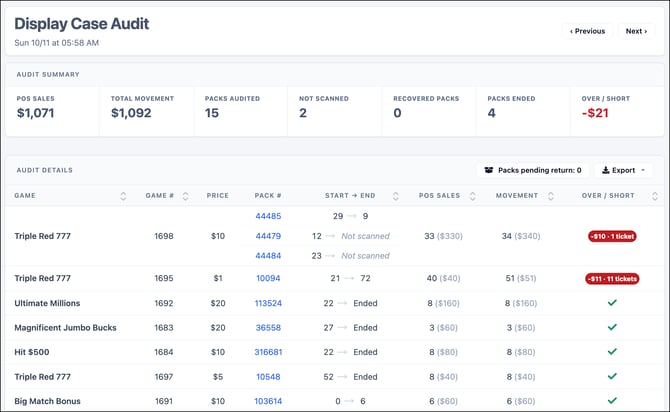
The page title identifies the audit type and shows the date and time the audit was completed. Use Previous and Next to move between audits without returning to the Scratch Audits page. Click Export to download the available details for the current audit.
The information shown may vary depending on the audit type. The sections below describe a typical Display Case Audit.
Audit Summary
The Audit Summary at the top of the page provides a quick overview of the audit, including sales, movement, packs audited, pack statuses, and the overall over/short result.
The Not Scanned, Recovered Packs, Packs Ended, and Over/Short summaries can also be selected to highlight the related rows in the table.
Exceptional and Special-Status Rows
By default, Audit Details shows exceptional and special-status rows at the top of the table, with all other audited games listed beneath them. If you click a sortable column header, the table will be reordered based on that column instead.
These exceptional and special-status rows include with:
- Shortages
- Overages
- Packs that were not scanned
- Packs that ended during the audit
- Recovered packs
Highlighting Audit Results
Select one of the summary filters to highlight the affected rows in the table.
When a summary filter is selected:
- The selected summary is outlined.
- A description of the selected result appears beneath the Audit Summary.
- Matching rows are highlighted.
- Rows that do not match remain visible.
Highlight colors indicate the type of result:
- Red — shortages and packs that were not scanned
- Yellow — overages
- Green — packs that ended and recovered packs
When Over/Short is selected, shortages are highlighted in red and overages are highlighted in yellow.
Games Audited
The Games Audited table provides the reconciliation details for each game and pack included in the audit.
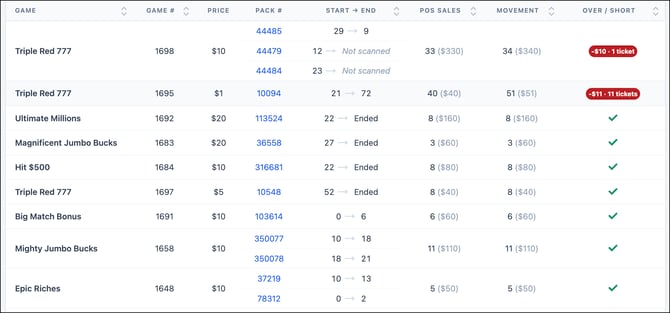
A game row may include more than one pack when multiple packs from the same game were involved in the audit.
Available columns may include:
| Column | Description |
|---|---|
| Game | The scratcher game included in the audit. |
| Game # | The state lottery game number. |
| Price | The price of each ticket. |
| Pack # | The pack or packs included for that game. Click the pack number to open Pack Details for that pack. |
| Start → End | The ticket number recorded in the previous audit and the result recorded in the current audit. |
| POS Sales | The number and dollar value of tickets recorded as sold by the POS. |
| Movement | The number and dollar value of tickets that moved between audits. |
| Over / Short | The difference between identified ticket movement and recorded POS sales. |
The Start → End column may show a status instead of an ending ticket number, such as Not Scanned or Ended.
A green check mark in the Over / Short column indicates that the game reconciled. A discrepancy displays the associated dollar amount and number of tickets.
Opening the Scratcher Timeline or Pack Details
The Games Audited table provides two ways to continue your review:
- Click a game row to open the Scratcher Timeline for that game.
- Click a linked pack number in the Pack # column to open Pack Details for that specific pack.
Use the Scratcher Timeline to review the broader history of the game, including audits, ticket sales, voids, employee register activity, and pack changes.
Use Pack Details to review the state lottery status and LottoShield history of one individual pack.