![LottoShield Logo -2.png]](https://help.lottoshield.com/hs-fs/hubfs/LottoShield%20Logo%20-2.png?height=50&name=LottoShield%20Logo%20-2.png)
After you’ve installed the LottoShield Sales Tracker it’s essential that you disable sleep mode on your device. If sleep mode is not set to "NEVER" the LottoShield sales tracker will lose conntion.
Look for directions to disable sleep mode based on the version of Windows your computer uses below.
Laptops - If you have a Windows laptop you will also need to disable sleep when the lid is closed. See how to do that here.
Windows 11
-
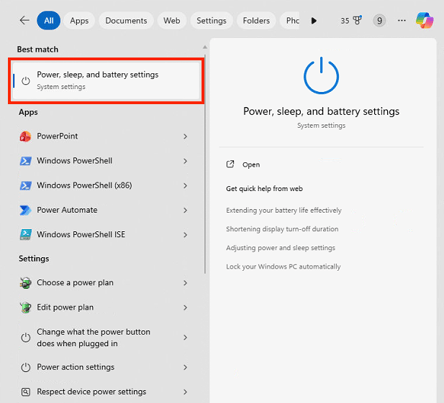
Click the Search icon (🔍) on the taskbar and type Power.
-
Click Power & sleep settings from the search results.
-
On laptops, this may appear as Power, sleep, and battery settings.
-
-
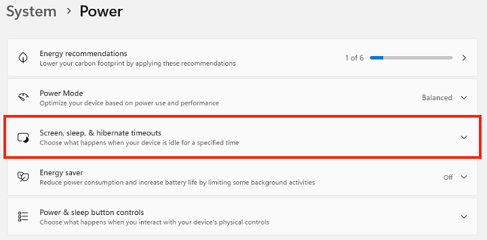
Click Screen, sleep, and hibernate timeouts.
-
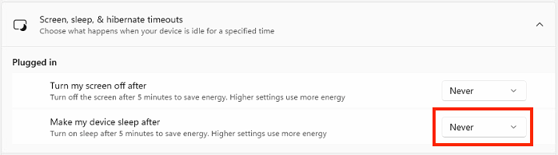
From the Make my device sleep after dropdown menu, select Never.
You’ve successfully disabled auto-sleep! You can now close the window.
Windows 10
On a Windows 10 computer, right-click the Windows icon in the bottom left of the screen. Click Power Options in the menu.
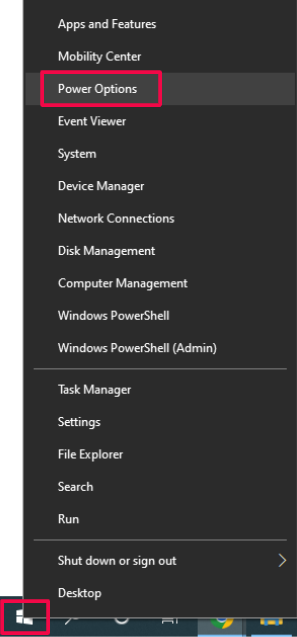
The Settings window will open. Under the Sleep section, change both dropdowns to Never.
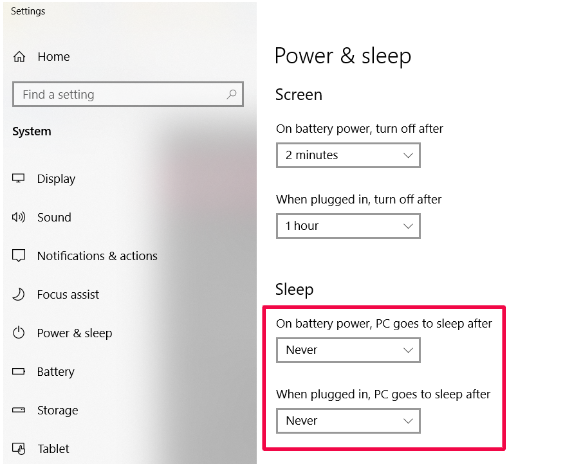
You’ve successfully disabled auto-sleep! You can now close the window.
Windows 8
For simple steps on how to disable sleep mode for Windows 8, see the article here.
Windows 7
On a Windows 7 computer, click the Windows icon in the bottom left of the screen and type power sleep in the search. Click Change when the computer sleeps in the menu.
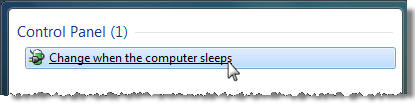
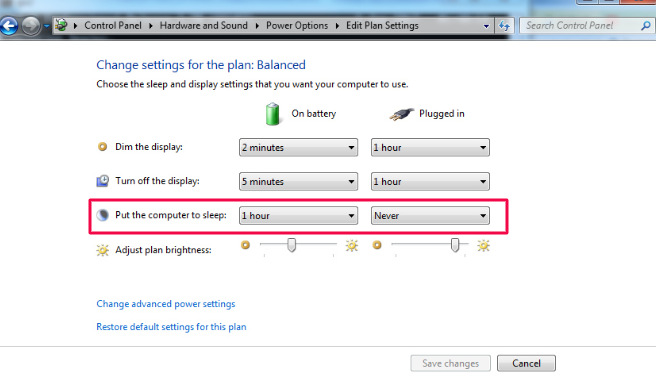
Under On battery and Plugged in, change both dropdowns to Never. Note that if you’re using a desktop computer, you will not see a battery settings option, simply choose Never for the computer going to sleep.
Customers with Windows Laptop
There is on additional step after you change the sleep setting. You have to set the Lid settings to "Do nothing" watch this video to help you set your Lid to do nothing.
When you’re done, click Save changes.