![LottoShield Logo -2.png]](https://help.lottoshield.com/hs-fs/hubfs/LottoShield%20Logo%20-2.png?height=50&name=LottoShield%20Logo%20-2.png)
Purpose
This article explains how to confirm whether your store already has a backoffice connection before proceeding with setup. It includes quick tests for Verifone and Gilbarco Passport POS systems and guidance on what to do if the connection fails.
Not Sure if You Have a Backoffice Connection?
If you’re unsure, you can:
- Run a quick test using the steps below, or
- Ask LottoShield Chat Support to help check your connection status for you.
Step 1: Select Your POS Type
Choose the section below that matches your POS system:
Verifone Sites
- On your store’s Windows PC, open any web browser.
- In the address bar, type or paste the following link:
https://192.168.31.11/ConfigClient.html
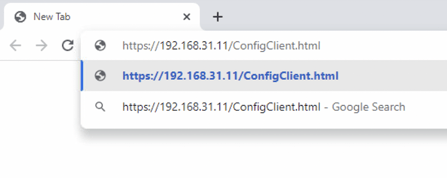
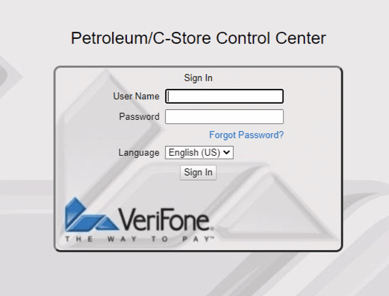
If the connection is successful, you should see the Petroleum C-Store Control Center.
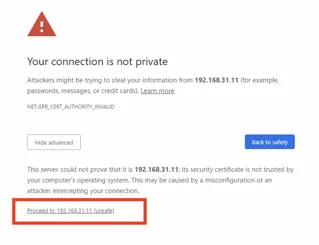
⚠️ Note: You may receive a browser warning stating “Your connection is not private.”
Click Advanced to view more options. Then click Proceed to 192.168.31.11 (unsafe) to continue as shown below.
Result:
- ✅ Page loads: You have a backoffice connection. You can continue to Installing LottoShield Pro.
- ❌ Page doesn’t load: Continue to What You Need for a Backoffice Connection.
Gilbarco Passport Sites
- On your store’s Windows PC, open File Explorer.
- In the Quick Access bar at the top, enter:
\\10.5.48.2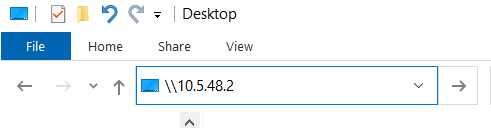
- Press Enter.
- If prompted with a Windows Security login, enter the following credentials:
Username: BackOffice
Password: BackOffice
⚠️ Note: Both the “B” and “O” must be capitalized. - Check “Remember my credentials”, then click OK.
- A new window should open showing the XML Gateway folder.
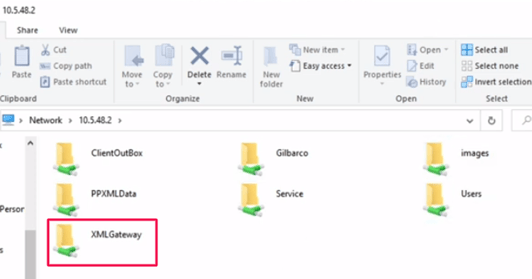
Result:
- ✅ Folder appears: You have a backoffice connection. You can continue to Installing LottoShield Pro.
- ❌ Folder does not appear: Continue to What You Need for a Backoffice Connection.