![LottoShield Logo -2.png]](https://help.lottoshield.com/hs-fs/hubfs/LottoShield%20Logo%20-2.png?height=50&name=LottoShield%20Logo%20-2.png)
Purpose
Before connecting your Windows PC to your store’s network, it’s important to identify your Managed Network Service Provider (MNSP) box. This device is what your POS system, pumps, and credit card processing all connect through — and it’s where your Windows PC will connect to get the data LottoShield needs to capture lottery sales.
Step 1: Locate Your MNSP Box
Every gas station has one MNSP box. It’s usually found:
- Near your POS system, router, or backoffice equipment
- In the same area where your network cables and terminals connect
- Mounted on a wall, inside a cabinet, or near your modem
If you’re not sure what you’re looking for, review the images and descriptions below.
Common MNSP Boxes
Below are the most common MNSP boxes used in gas stations. Identify which one you have — this will determine which connection guide to follow next.
1. Cybera
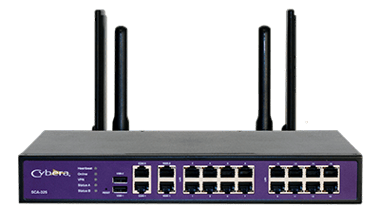
A small black box with Ethernet ports, often labeled with a white “Cybera” sticker or logo.
2. Hughes
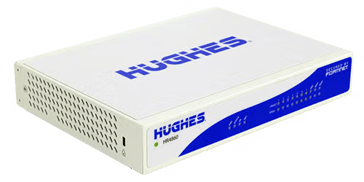
An off white or light gray box with the Hughes logo, often with indicator lights on the front panel.
3. Fortinet
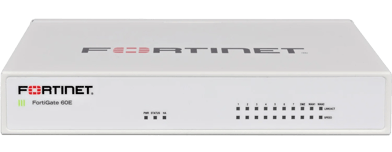
A light gray box labeled Fortinet or FortiGate.
4. Acumera
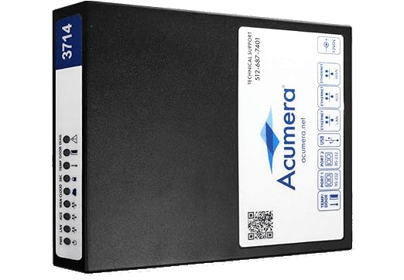
A compact black box with the Acumera logo.
5. Mako
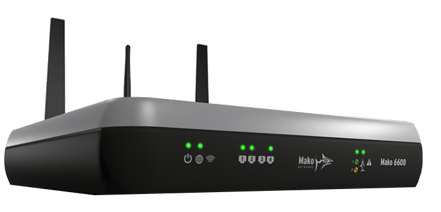
Typically a silver and black box labeled Mako Networks.
6. Paysafe UTM
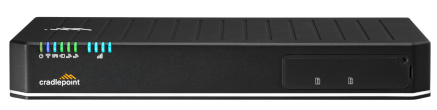

A black or gray box labeled Cradlepoint (PDI) or Meraki.
💡 Tip: Take a photo of your MNSP box or note the model name.
This will help if you need to contact LottoShield support for assistance.
Step 2: Confirm You Have the Right Equipment
Before you connect, make sure you have:
- A Windows PC or laptop
- Ethernet cables (Cat 5 or Cat 6) One will be used between the PC and MNSP, but a second short one may be required if you need to use a Network Port switch.
- A USB-to-Ethernet adapter (if your computer doesn’t have an available Ethernet port)
- A Network Port switch (optional, if your MNSP box doesn’t have an available port)
You can find the full equipment list here: What You Need for a BackOffice Connection
Step 3: Prepare for the Connection
Once you’ve identified your MNSP box and have your equipment ready, you will need to route an ethernet cable from your Windows PC to your MNSP.
⚠️ Important: Some gas station setups can be more complex depending on store size and network configuration. If you aren't comfortable routing the ethernet cable, please consult a networking service provider.
Next Step
Now that you’ve identified your box and prepared your setup, you’re ready to connect.
👉 Select your MNSP brand below for detailed connection instructions.