![LottoShield Logo -2.png]](https://help.lottoshield.com/hs-fs/hubfs/LottoShield%20Logo%20-2.png?height=50&name=LottoShield%20Logo%20-2.png)
The LottoShield Portal includes several dashboards that help you review lottery activity, identify issues, and navigate to more detailed information about your stores.
Dashboards provide different ways to view your lottery operations depending on what you need to review. You may use a dashboard to look at individual store locations, review stores by management territory, or compare activity by state.
Dashboard Views
LottoShield includes three primary dashboard views: Store View, Manager View, and State View.
Store View
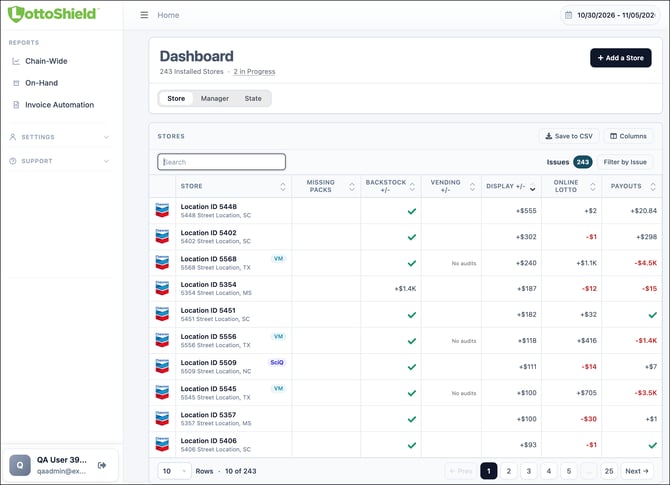
Store View provides a location-level overview of your stores. This view is useful when you want to review individual locations, compare store activity, or open a specific store to investigate details such as audit history, pack details, backstock, missing packs, vending machine data, and more.
Manager View
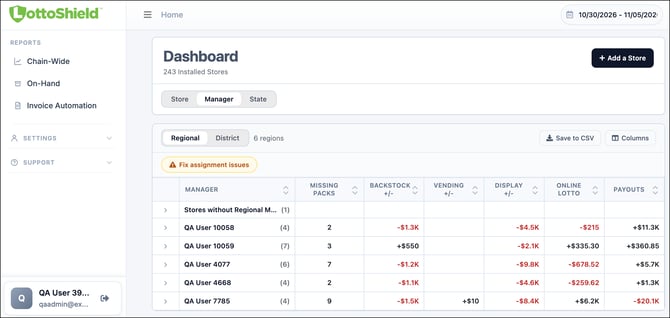
Manager View organizes stores by management assignments. This view is useful for corporate users who want to review lottery performance by district manager or regional manager territory.
Manager View includes two tabs:
District Manager View
Shows district managers at the top level, with assigned stores nested beneath each district manager.
Regional Manager View
Shows regional managers at the top level, with district managers nested beneath each regional manager and stores nested beneath each district manager.
Manager View is based on the assignments configured in User Management. If more than one manager with the same role is assigned to a location, that location will appear under each assigned manager, and its results will be included under each manager’s totals.
If LottoShield detects missing or duplicate manager assignments, a Fix Assignment Issues button will appear. Click the button to open User Management, where you can review and correct the affected assignments.
State View
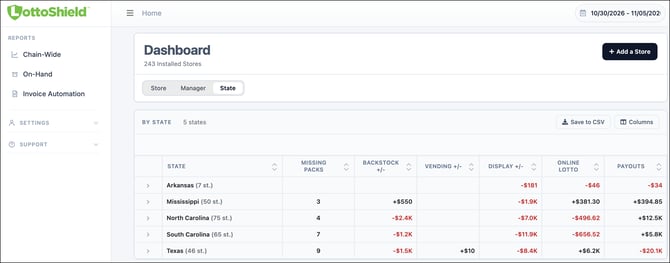
State View organizes store data by state. This view is useful when reviewing state-level activity, comparing stores by state, or looking at information that may depend on state lottery reporting.
State View may not always match Manager View because the two dashboards are organized differently. Manager View is based on management assignments, while State View is based on state/location grouping.
General Dashboard Navigation
Most dashboards allow you to search, filter, sort, and review information based on the selected date range. Some dashboards also include expandable rows so you can move from a higher-level summary to more detailed information.
For example, clicking or expanding a row may allow you to review the stores, managers, or details grouped beneath that row.
Date Range
Use the date range selector in the upper-right corner to adjust the range of days shown across LottoShield dashboards and related pages.
Changing the date range updates the information shown for the selected period.
Column Customization
Dashboard columns may be customized so you can focus on the information most relevant to your role.
Depending on the dashboard, you may be able to show, hide, reorder, or resize columns. Column customization changes how information is displayed, but it does not change the underlying data.
After making changes in the columns panel, click Apply to update the current dashboard view. Applying changes will update what you see on the page, but it will not save those changes as your default view.
To save your column selections and column order, click Save as Default View. This saves your preferred column setup so it will be used the next time you open the dashboards.
Your saved default view applies across all dashboard views.
Column Customization Details
Click Columns to open the column customization panel.
From this panel, you can choose which columns are visible in Store View and change the order in which columns appear.
Column customization helps you focus on the information most relevant to your role or workflow.
Showing or Hiding Columns
Use the toggle next to each column name to show or hide that column.
Visible columns will appear in the dashboard table. Hidden columns will be removed from the current table view.
Some columns may be required and cannot be hidden.
Reordering Columns
Use the drag handle next to a column name to change the order of the columns.
The table will follow the order shown in the column customization panel.
Applying Column Changes
After making changes in the column panel, click Apply.
Clicking Apply updates the dashboard view you are currently looking at, but it does not save those changes as your default view.
Saving Your Default View
Once you have selected you columns, you can save your preferred column setup by clicking Save as default view on the right side of the page.
Saving the view as default keeps your selected columns and column order for future dashboard use.
Your saved default view applies across all dashboard views.
Column Descriptions
| Column | Description |
|---|---|
| Store | The store location shown in the dashboard row. |
| Display | Display Case sales activity or variance for the selected date range. |
| Online Lotto | Online Lotto sales activity or variance for the selected date range. |
| Payouts | Payout activity or variance for the selected date range. |
| Backstock | Backstock missing packs, and shortage |
| VM | Vending machine sales activity or variance. |
| Void → Short | Voids that may be associated with shortage activity. |
| Missing Packs | Missing packs are those missing from your backstock. Number of missing packs identified for the selected date range. |
| Large Payouts | Large payout activity identified for the selected date range. |
| Frequent Shortages | Shortages identified on 40% or more days in the date range. |
| Missing Audits | Number of days that audits have not been completed within the date range. |
| Last Login | The most recent login activity, if available. |
| Resolved Issues | Number of issues that have been marked as resolved. |
Next Steps
To learn more, review the dashboard-specific articles:
- Store View
- Manager View
- State View