![LottoShield Logo -2.png]](https://help.lottoshield.com/hs-fs/hubfs/LottoShield%20Logo%20-2.png?height=50&name=LottoShield%20Logo%20-2.png)
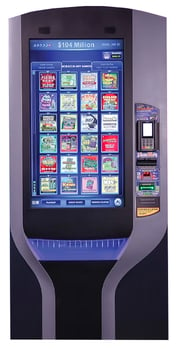
Use this process to complete a LottoShield audit, zero out the PlayCentral HD vending machine, clear the cash, and submit the Shift Report.
Choose a Schedule
Determine how often your location will zero out and clear the vending machine.
Popular schedule options are listed below. However, the most important thing is to establish and follow a consistent schedule. We recommend completing this process at least once per week.
- Daily: Zero out and clear the machine every day. Complete all steps in this article each day.
- Weekly: Choose one day of the week to zero out and clear the machine. Complete all steps on the same day each week.
Important: The first time you complete a LottoShield vending machine audit, you must zero out and clear the machine.
1. Unload the Scratch-Off Tickets
|
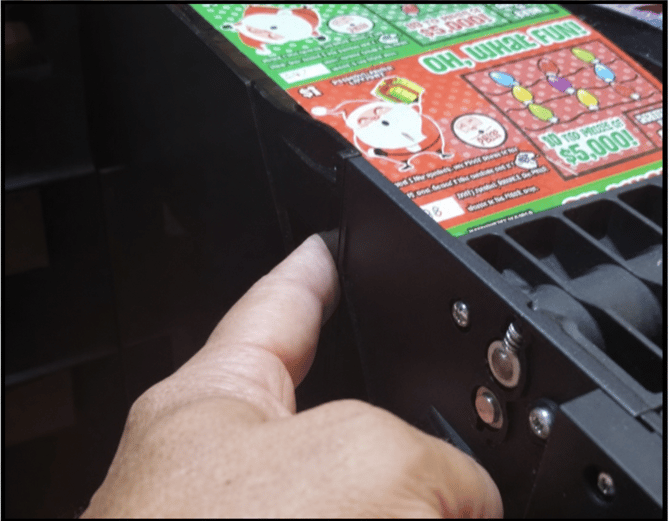 |
You can scan and reload each bin one at a time, or unload all bins before you begin scanning. Keep the tickets organized so they can be returned to the correct bins.
2. Complete the Vending Machine Audit
From the LottoShield mobile app:
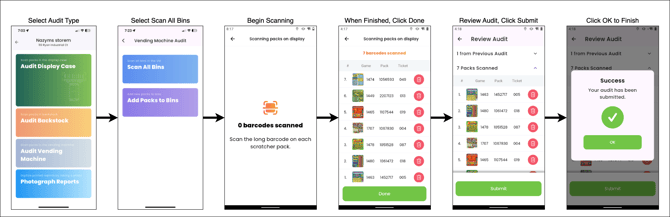
- Select Vending Machine Audit.
- Select Scan All Bins.
- Scan the ticket removed from the bin.
- Reload the ticket into the bin after it has been scanned.
- Repeat this process until every bin has been scanned.
- Review the total number of packs scanned.
- Submit the audit.
Important: Reload each ticket after scanning it. Make sure every loaded bin is included in the audit.
3. Zero Out the Machine and Clear the Cash
Complete the LottoShield audit before zeroing out the machine.
|
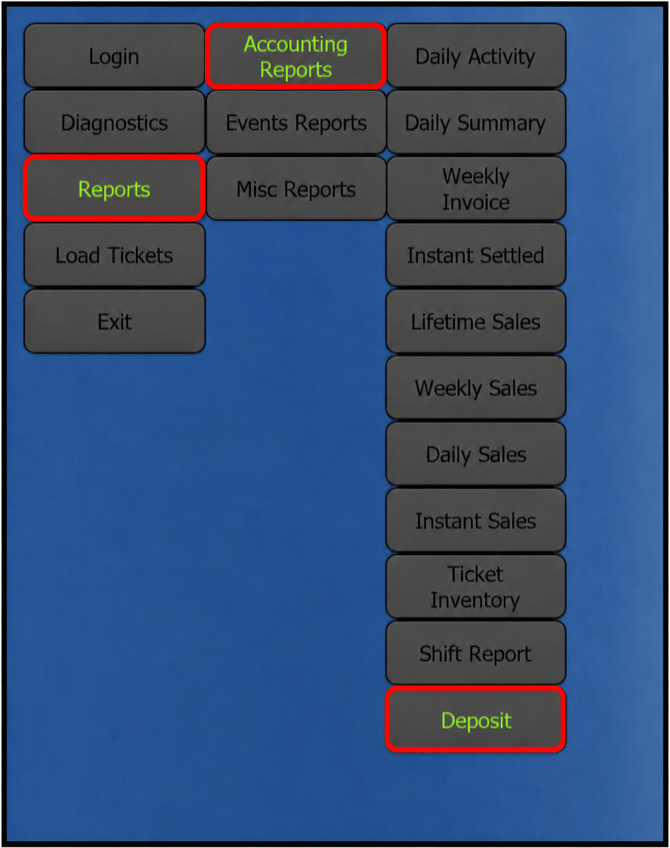 |
Selecting Deposit automatically does the following:
- Prints a Shift Report and two Deposit Receipts.
- Displays the amount of cash that must be removed from the currency cassette.
- Clears the current shift totals.
- Starts a new shift.
Important: Only select Deposit when you are ready to end the current shift, This can't be undone. The LottoShield audit must be completed first.
4. Upload the Shift Report
Upload the Shift Report through the LottoShield app immediately after completing the audit and clearing the machine.
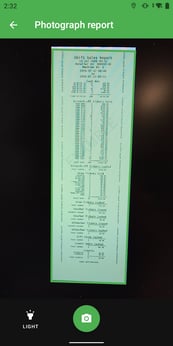
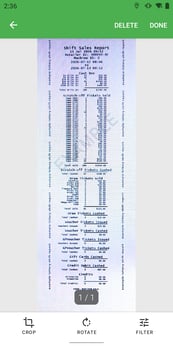
Important: When you take a picture of the Shift Report you must make sure the whole image is visible or readable. If the image can't be read or any part of the report is missing, LottoShield will reject it.
|
1. Open the LottoShield app.
|
 |
| 3. Tap Vending Machine Shift Report. | 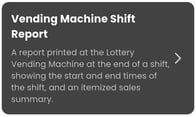 |
|
4. Take a clear photo of the full report. |
 |
|
5. Review the image and tap Done and the Confirm to upload the report. |
 |