![LottoShield Logo -2.png]](https://help.lottoshield.com/hs-fs/hubfs/LottoShield%20Logo%20-2.png?height=50&name=LottoShield%20Logo%20-2.png)
The Scratcher Timeline displays the activity history for a specific scratcher game, helping you investigate ticket movement, sales, audits, and discrepancies.
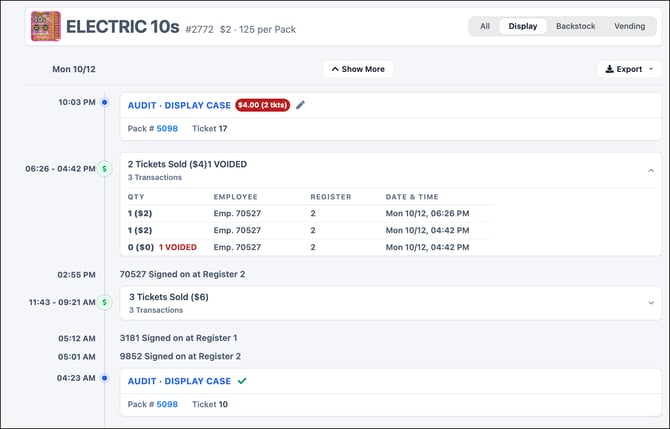
The page header identifies the game, including its name, game number, ticket price, and number of tickets per pack.
Activity is displayed in reverse chronological order, with the most recent activity at the top and older activity below. Events within each date are also displayed from newest to oldest. If multiple packs from the same game have been active, their activity appears together in the timeline.
Accessing the Scratcher Timeline
The Scratcher Timeline can be opened from two locations:
- Audit Details — Click a game row to open the timeline for that game. The timeline automatically loads at the date of the selected audit rather than the current date.
- Pack Details — Click a linked date in the Pack History section to open the Scratcher Timeline at that point in the pack's history.
This allows you to review activity surrounding a specific audit or pack event without having to navigate through the full history manually.
Filtering Timeline Activity
Use the tabs at the top of the page to focus on specific activity:
- All — displays all available activity for the game.
- Display — displays activity related to the display case.
- Backstock — displays activity related to backstock.
- Vending — displays activity related to the vending machine. This tab is available only for stores that have a vending machine.
Click Show More at the top or bottom of the page to display newer or older activity.
Reviewing Timeline Activity
The timeline displays events in reverse chronological order, including:
- Display Case, Backstock, and Vending Machine Audits
- Ticket sales and transaction details
- Voided transactions
- Employee register sign-ons
- Pack activations
Each event includes a time or time range, helping you see when activity occurred.
Audit Entries

Audit entries display the audit type, associated packs, and ticket numbers. Shortages and overages are identified by their dollar amount and ticket count, while reconciled audits display a green check mark.
When a pencil icon appears beside an over/short amount, click it to open the investigation modal. Depending on your permissions, you can either add a note about the discrepancy or resolve the issue.
Click a linked pack number in the timeline to open the Pack Details page for that specific pack.
Ticket Sales
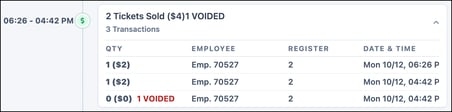
Ticket sales are grouped together when multiple sales occur without interruption. If another event, such as an audit, pack activation or employee register sign-on, occurs between sales, a new sales group begins.
Grouped sales appear as expandable entries showing the total number of tickets sold, sales value, and transaction count. Click a group to view the individual transactions.
When only a single sale occurs, it appears as an individual entry rather than an expandable group. Voided transactions are included in the same sales group when they occur within that uninterrupted span, and are identified separately within the expanded transaction details.
Employee Sign-Ons and Pack Activations

The timeline also records employee register sign-ons and pack activations, helping establish when employees were working and when new packs entered inventory.
Employee sign-ons identify the employee and register, along with the time they signed on. These events provide useful context when investigating sales activity or discrepancies.
Pack activations identify when a pack was activated. Click the linked pack number to open its Pack Details page.