![LottoShield Logo -2.png]](https://help.lottoshield.com/hs-fs/hubfs/LottoShield%20Logo%20-2.png?height=50&name=LottoShield%20Logo%20-2.png)
LotteryMenu is an add-on subscription service for LottoShield users that displays lottery scratcher games on an in-store screen.
LotteryMenu can be displayed in two ways:
- Using the LotteryMenu app on a compatible Google TV
- Using LotteryMenu Web View in a browser on a customer-managed device or compatible smart TV browser
LotteryMenu helps customers:
- Free up valuable counter space for higher-margin products
- Enhance the customer experience
- Drive more lottery sales
Optional: Replacing Countertop Display Cases
Some stores use LotteryMenu as part of a larger effort to move lottery scratcher displays off the countertop. One option is to replace countertop scratcher cases with under-counter display cases, allowing the counter space to be used for higher-margin products.
LottoShield does not sell or install display cases, but customers may choose to purchase under-counter lottery display cases from a third-party supplier such as Schafer Retail Solutions. Their Promoter 12, 16, 20, 24, 28, 32, 36 and 44 bin solutions could be a good choice. LottoShield customers receive a 10% discount by entering the discount code LOTTOSHIELD at checkout.
Step 1: Prepare Your Display
Before creating your menu, decide how LotteryMenu will be displayed in your store.
Option 1: Google TV App
Use this option if you are displaying LotteryMenu on a Google TV with access to the Google Play Store.
- Purchase and set up a Google TV in your store.
- Connect the TV to your store’s Wi-Fi network.
- Open the Google Play Store on the TV.
- Search for LotteryMenu.
- Install the LotteryMenu app.
Google has official partner brands, which can be found here. Other brands and models may also have access to the Google Play Store.
Note: LottoShield does not provide TV installation services or referrals for installers.
Option 2: Web View
Use this option if you are displaying LotteryMenu in a browser instead of using the Google TV app.
Web View can be used on a computer, media device, or compatible smart TV browser connected to your display.
Because Web View setups can vary by device, LottoShield provides the Web View URL, but the customer or display provider is responsible for setting up the screen, connected device, internet connection, and browser.
Before relying on Web View in-store, verify that the menu loads correctly, displays full-screen, and remains stable on your selected device.
Note: LottoShield does not provide screen installation services, hardware setup, browser setup, media devices, or referrals for installers.
Step 2: Create and Design Your Menu
1. Open LotteryMenu
In the LottoShield portal, click LotteryMenu in the left navigation.
If you do not have an existing LotteryMenu, the portal will show a splash page with an interactive playground. The playground lets you preview how LotteryMenu works before creating your first menu.
When you're ready to create your first menu, click Create Menu.
Note: If you've previously created a menu, you will be brought directly to the Menu
2. Configure Menu Settings
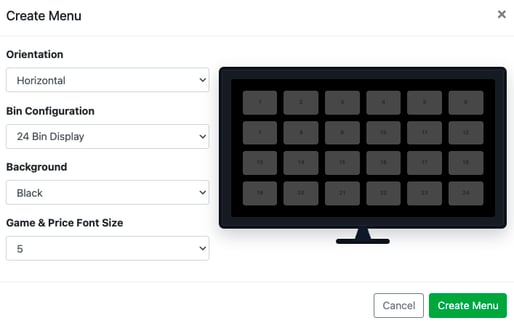
Customize how your menu appears on the display:
- Choose screen orientation.
- Select the number of bins to display.
- Adjust the font size.
- Set your background color or theme.
For more options, select Bin Configuration and then Custom Bin Number. There you be able to select different bin numbers and the amount of bins displayed in each row.
3. Assign Games to Bins
Click each bin to assign games by scrolling for them, searching for them by game number or game name.
Lottery customers may ask for tickets by game name or by the bin number displayed on the screen, so this step is important.
When finished, click Save & Publish.
Step 3: Display the Menu on Your Screen
After your menu has been created and published, connect it to your display using either the Google TV app or Web View.
Option 1: Display on a Google TV
- Open the LotteryMenu app on your Google TV.
- A pairing code will appear on the screen.
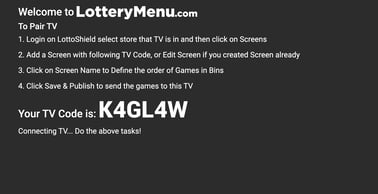
- In the LottoShield portal, open your LotteryMenu.
- Click Pair TV.
- Enter the code displayed on the TV.
In the example above, the code is K4GL4W.
After pairing, verify that your menu appears correctly on the TV.
Option 2: Display Using Web View
To display LotteryMenu on the computer you are currently using, open the menu in the LottoShield portal and click Web View.

To display LotteryMenu on another device or smart TV browser, click the copy icon shown below to copy the URL, then open that URL in the browser on the device connected to the display.

Set the browser to full-screen mode and verify that the menu appears correctly on the display.
Step 4: Update Your Menu
After your LotteryMenu has been created, you can make updates from the LottoShield portal at any time.
Update Games and Inventory
-
If a game sells out and you are not able to replace it immediately, you can mark the game as Sold Out in LotteryMenu.
-
If a game sells out and you replace it with a different game, select the new game for the relevant bin.
After making changes, click Save & Publish to update the display.
Configuration Setting Updates
You can also update your menu configuration settings by clicking the gear icon in the top bar.

This opens a panel on the right side of the screen where you can adjust the same menu settings you selected when creating your menu.
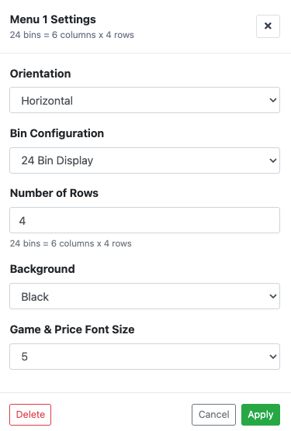
Click Apply to apply the changes to your menu configuration. Then click Save & Publish to update the display.