![LottoShield Logo -2.png]](https://help.lottoshield.com/hs-fs/hubfs/LottoShield%20Logo%20-2.png?height=50&name=LottoShield%20Logo%20-2.png)
Occasionally, your LottoShield scanner may go offline for a variety of reasons. This article provides troubleshooting steps to help you get your scanner back online quickly.
Click one of the three scanner types below to jump to the appropriate troubleshooting section.
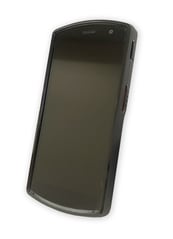
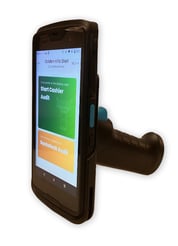
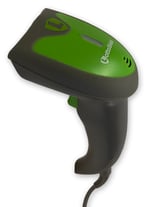
Urovo Scanner Troubleshooting Guide
Identifying Your Scanner
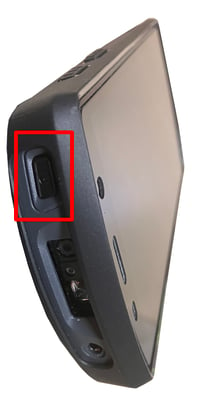
Depending on when you purchased your scanner, you may have a Urovo CT58 or Urovo DT50. The easiest way to determine which device you have is by the location of the power button. See the following images to identify which device model you have.
|
The power button is on the right side of the device near the top.
|
The power button is on the top of the device to the right of the laser scanner.
|
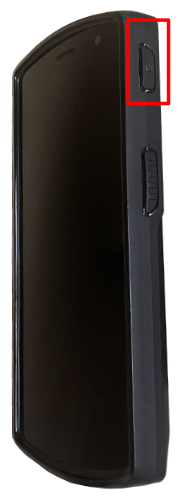
Urovo CT58
Follow the troubleshooting steps in the video below to resolve common issues with your LottoShield Scanner.
Reminder: Always ensure your scanner is fully charged before beginning any troubleshooting steps.
Factory Resetting Your Urovo Scanner
A factory reset should only be used as a last resort—after you’ve tried all troubleshooting steps shown in the video above.
Before performing a factory reset, we strongly recommend contacting LottoShield Chat Support to confirm whether any other options are available.
A full factory reset takes approximately 2 minutes and 30 seconds to complete.
Important Information Before You Reset
Before performing a factory reset, be aware of the following:
1. Wi-Fi Password Required
After the reset, your LottoShield scanner will forget your Wi-Fi network password.
You must know your Wi-Fi password to reconnect the scanner to the internet.
2. Do Not Press Anything During Startup
When the scanner restarts, allow it to automatically load into the Enterprise Launcher and then the LottoShield app. Do not tap the screen or press any buttons during this process.
You will know you are in the Enterprise Launcher if you see only two icons:
-
The Wi-Fi button
-
The LottoShield app
3. When to Use a Factory Reset
A factory reset should only be used when:
-
The scanner’s screen is frozen
-
The screen turns black after a power cycle
-
You cannot power cycle the scanner using the power button
-
Other troubleshooting steps have been exhausted
The video below will walk you through the complete factory reset process.
Urovo DT50

This section is still under development. Please contact our support team for troubleshooting assistance with the Urovo DT50.
LottoShield Unitech Scanner Troubleshooting Guide
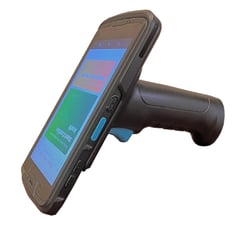
If your LottoShield Unitech scanner is experiencing issues, please contact LottoShield Customer Support. In most cases, our team can access the device remotely and resolve the issue for you.
If the scanner cannot be accessed remotely, Customer Support will need the following information:
-
Your store’s Wi-Fi name (SSID)
-
Your store’s Wi-Fi password
Important:
The spelling and capitalization of both the Wi-Fi name and password must be exact.
Once this information is provided, we will send you a QR code to scan. Customer support will let you know when to scan the QR code.
Contacting Support
Customer Support can be reached from any page in the LottoShield Portal by clicking the green chat icon near the bottom of the page.
Support hours are Monday–Friday, 6:00 AM to 8:00 PM (Eastern Time).
Original LottoShield Scanner Troubleshooting Guide

Use this guide to diagnose connectivity issues with your original LottoShield scanner.
Check the blue light on top of the scanner to determine which section applies to you:
Section A — Flashing Blue Light
A flashing blue light indicates that the scanner is not connected to Wi-Fi. Follow the steps below to reconfigure your Wi-Fi connection.
-
Plug your scanner into power.
You should see the blue light blinking. -
Reconfigure your Wi-Fi.
Click the link below and follow the instructions:Click Here to configure the Wi-Fi for your LottoShield Scanner
-
Once configured correctly, the blue light on top should turn solid blue.
Important:
When entering your Wi-Fi credentials, they must match your network exactly.
This includes uppercase and lowercase letters, numbers, and special characters.
Section B — Solid Blue Light but No Connection
If the blue light is solid, the scanner is connected to Wi-Fi but not uploading data. Try the following steps:
1. Power Cycle the Scanner
Unplug the scanner from power, wait 10 seconds, then plug it back in.
This resolves most connectivity issues.
After power cycling, check the light again:
-
Solid blue → Perform an audit to verify connection
-
Flashing blue → Return to Section A to reconfigure Wi-Fi
Note:
If your scanner frequently goes offline, contact LottoShield Chat Support so we can run an update on your scanner.
2. Reset Wi-Fi Configuration
If power cycling does not fix the issue:
-
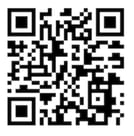
Scan the reset barcode provided below.
-
Wait for the blue light to begin flashing.
-
Reconfigure Wi-Fi using the instructions in Section A.
If the Scanner Still Will Not Connect
Consider the following possible causes:
-
Wi-Fi network is rejecting new devices
The router may need a reboot, or old devices may need to be removed from its memory. -
Wi-Fi network is 5 GHz only
The scanner can connect only to 2.0 or 2.4 GHz networks.
Ensure the 2.4 GHz band is enabled, or contact your ISP for assistance. -
Router needs to be rebooted
-
Scanner is too far from the router
Move the scanner next to the router to test whether signal strength is the issue. -
Faulty router
The router may need replacement. -
Test with another network
Try connecting the scanner to:-
A different Wi-Fi network, or
-
Your phone’s hotspot
Use the steps in Section A to configure Wi-Fi for the alternate network.
-